



In the world of AI, especially in the context of LLM (large languages models), Python has dominated as the programming language of choice for many years. Many courses, tutorials, and code examples assume that AI work is mainly done in Python. However, for developers embedded in the JavaScript ecosystem, the reality is somewhat different. Implementing AI using Node.js and JavaScript is not only possible, but can be extremely effective and beneficial. Why choose JavaScript when working with AI? Here are some key reasons that make JavaScript a great choice for implementing modern AI-based solutions.
Node.js – The ideal environment for AI services and APIs
Most AI-related processes, including those based on large language models, follow a simple pattern: “send a query → receive a response → process the response.” In this context, Node.js proves to be an excellent choice, especially when we need an efficient, scalable environment to support API services.
With Node.js, launching a server or sending a query to an AI model requires just a few lines of code, which significantly speeds up the development process. Thanks to the asynchronous nature of Node.js, we see exceptional performance, especially with API-based tasks that may require handling multiple simultaneous queries in real time. This makes Node.js fast, scalable, and ideal for building applications that need to respond instantly to user queries—features that are crucial when working with large language models (LLMs).
The JavaScript ecosystem – A powerful tool in the hands of an AI developer
JavaScript is not only a frontend language, but also a powerful tool for working with data in real time, handling WebSockets, integrating with popular frontend frameworks such as React, Vue, and Angular, and working with external services. When combined with a wide range of available libraries and tools for handling artificial intelligence, JavaScript becomes the natural choice for building modern, intelligent applications.
The JavaScript ecosystem includes libraries that enable easy integration with artificial intelligence-based models such as OpenAI, TensorFlow.js, and Hugging Face. These types of tools allow you to build chats, voice assistants, image recognition applications, and even full-fledged recommendation systems. In the case of JavaScript, another huge advantage is the ability to immediately preview results in web browsers. This makes both the development and testing of applications much simpler and faster.
Seamless integration – JavaScript vs Python
Although Python is often the preferred language in the context of AI, including large language models (LLMs), it is worth noting that JavaScript also works very well in this role. Thanks to popular APIs such as OpenAI and support for frameworks such as HuggingFace, integration with these technologies in JavaScript is quick and seamless.
Node.js provides developers with flexibility in integrating with various technologies and external services, and its ecosystem is constantly growing, adapting to the needs of modern AI applications. Unlike Python, which despite its powerful role in the field of artificial intelligence may require a more complex environment and a larger number of external tools, JavaScript has a very compact and effective structure for integration in various environments.
Benefits of using JavaScript in AI development
- Seamless integration with web applications
One of the biggest advantages of JavaScript is its integration with web applications. Developers can immediately test and make changes to the user interface without having to compile separate files or reload the application. This is a huge convenience that allows for rapid iteration, testing, and refinement of AI solutions, including chatbots, voice assistants, and real-time data processing applications.
- Easier collaboration with the frontend team
JavaScript is a common language for both the backend and frontend layers of an application. This makes it easier for frontend and backend teams to collaborate, share code, debug together, and develop the application. For larger AI-based projects, collaboration between these teams is crucial in order to respond quickly to user needs and adapt interfaces.
- Wide availability of libraries and tools
JavaScript offers a vast number of libraries and tools for working with data and AI. For developers who already work with the JavaScript ecosystem, the availability of these tools makes it easier to implement AI-based solutions without having to learn a new language. Tools such as TensorFlow.js, Brain.js, and Synaptic allow for rapid prototyping and testing of new ideas.
- Working with large language models (LLMs)
Modern AI applications increasingly use large language models (LLMs) such as GPT-4 and BERT. JavaScript supports these technologies through simple APIs that enable integration with models from OpenAI, HuggingFace and Google. This makes the implementation of such technologies accessible even to those who are not specialists in the field of artificial intelligence but want to use AI in their applications.
Examples of Node.js working with AI model APIs
In the following two examples, I will show how easy it is to connect using the Node.js API of well-known models: OpenAI and various libraries from HuggingFace.
First: create an .env file where you will save your API keys. It should be located in the root directory of your project.
If you don't have OpenAI API keys, here's a good article on Medium, that shows you step by step how to register on the OpenAI platform and create API keys.
Second: initiate the Node.js project. This can be done using the terminal:
npm init
Answer a few questions in the terminal, and the system will create a package.json file. In fact, if we are talking about working with the API, all you need to do is install:
- axios
- cors
- dotenv
- express
- nodemon
To work with OpenAI, you need to add the openai package, while for HuggingFace, I will also use @huggingface/inference and multer in the example below.
I will not describe in detail how the HTML page and the attached JS script work, because its only function is to send a request to our server and render the response. All you need to do is use the standard fetch function.
Integrating OpenAI with a Node.js server
So, we write our server in Node.js. To do this, don't forget to install all the packages listed above. Then, we start the server itself and read the contents of the .env file (where the API keys are stored) and immediately solve any CORS issues.
const express = require('express');
const bodyParser = require('body-parser');
const cors = require('cors');
const OpenAI = require('openai');
const dotenv = require('dotenv');

dotenv.config();
const app = express();
app.use(bodyParser.json());
app.use(cors());

const openai = new OpenAI({
  apiKey: process.env['OPENAI_API_KEY'],
});
We indicate which OpenAI model we will be working with:
const MODEL = 'gpt-5-nano';
All that remains is to add processing for incoming requests and start the server itself. The server's task is to receive commands (prompts) and forward them to OpenAI.
app.post('/test-server', async (req, res) => {
  const userPrompt = req.body.prompt || 'Hello!';

  res.setHeader('Content-Type', 'text/html; charset=utf-8');
  res.setHeader('Transfer-Encoding', 'chunked');

  try {
    const stream = await openai.chat.completions.create({
      model: MODEL,
      stream: true,
      messages: [
        { role: 'developer', content: 'You are a helpful assistant' },
        { role: 'user', content: userPrompt },
      ],
    });

    for await (const chunk of stream) {
      const content = chunk.choices?.[0]?.delta?.content;
      if (content) res.write(content);
    }

    res.end();
  } catch (error) {
    console.error('Stream error:', error);
    res.status(500).send('Error streaming OpenAI response');
  }
});
Keep in mind that the OpenAI query contains not only the command (userPrompt), but also the role in which OpenAI will respond (role: ‘developer’). By default, this is “You are a helpful assistant.” This is appropriate in most cases. However, if we want to take on a different role (one that better suits our commercial goals), this can be changed without any problems.
And the second thing you may have noticed in the code: I use chunk and stream. Why? The thing is, OpenAI doesn't respond very quickly (it can take up to a minute to generate a response, especially if we're talking about a lengthy one). If we just wait for the response, it may seem like you are waiting forever for the system to respond (or that the application is not working at all). Considering that GPT models generate responses based on tokens (not exactly syllables, but something similar), the server accepts this token and immediately passes it on to the page. This does not change the operation of the application, but it is much more user-friendly because the end user does not see a loader that takes forever to load, but sees a pleasant animation of text generation.
That's basically it. All that's left to do is “listen” for incoming queries (if the port is specified in the .env file, get it from there, and if not, enter your own value; in this project, I use 4001):
app.listen(process.env.PORT || 4001, () => {
  console.log('run here: http://localhost:4001');
});
Then, just run the standard “npm run start” to make the server ready to accept incoming requests.
And of course, if you want to learn more, read the documentation.
Generating graphics using HuggingFace and a Node.js server
Connecting to OpenAI is not too complicated, especially since we only need a text response. Let's move on to a slightly more complex task – generating images – and connect not one, but several models available for free through the HuggingFace library.
The first thing we need to do is register with HuggingFace and create a key (more or less the same as with OpenAI). The keys tab is located in the Settings -> Access Tokens section. When creating a key, just give it READ permission.
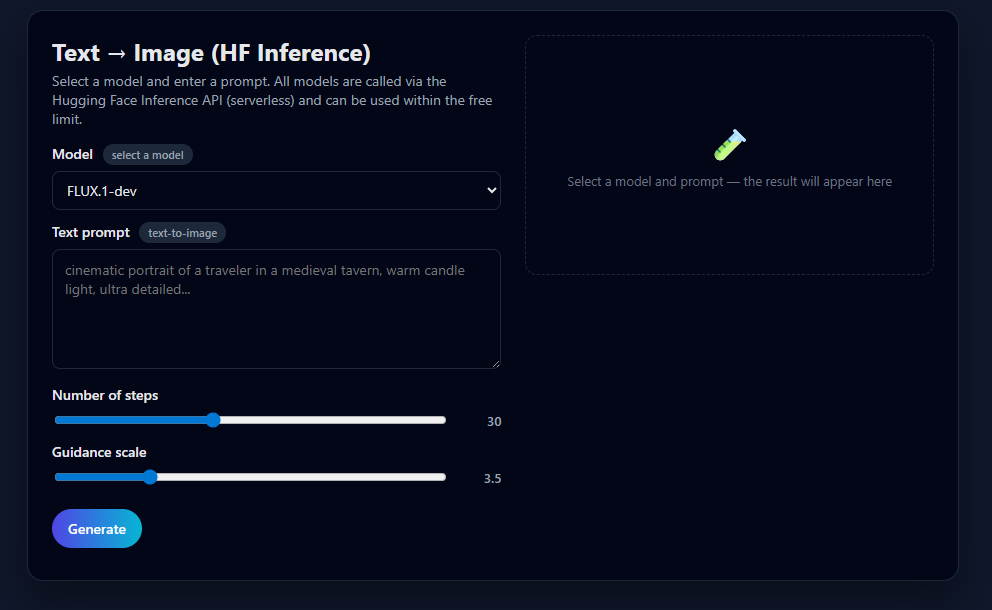
Okay, if everything is ready, let's get started. First, let's quickly create an HTML interface.
You can write it as you wish and leave only some space for the result. However, I recommend adding a selection of models first:
- FLUX.1-dev
- FLUX.1-schnell
- SDXL Base 1.0
- SD3 Medium
Why these models? All of these models are accessed via the Hugging Face Inference API (serverless) and can be used within the free limit.
I also recommend adding a small section on parameter selection. This will give you a little more flexibility when working with images.
- Select the number of steps (number from 10 to 60, default 30)
- Classifier-Free Guidance (CFG) scale, a parameter in AI image generators that controls how closely the generated image matches the text prompt (number from 0 to 15, default 3.5).
A simple div is sufficient for the results section.
The result will look something like this:
As for scripts, their task is to retrieve all our parameters and send them to the server, as well as handle any errors (which are much more likely here, if only because the free HuggingFace limit may run out). As with OpenAI, a simple fetch will suffice.
Let's move on to the server. First, we collect the server itself (and import the port if specified in .env) and connect the HuggingFace keys, not forgetting to import the HuggingFace library itself.
import express from "express";
import cors from "cors";
import "dotenv/config";
import { InferenceClient } from "@huggingface/inference";

const app = express();
const port = process.env.PORT || 3000;

app.use(cors());
app.use(express.json());
app.use(express.urlencoded({ extended: true }));
app.use(express.static("public"));

const HF_TOKEN = process.env.HF_ACCESS_TOKEN;
const hf = HF_TOKEN ? new InferenceClient(HF_TOKEN) : null;
Then specify the model selection, if it has been added to the page:
const MODELS = {
  "flux-dev": {
    label: "FLUX.1-dev",
    provider: "hf-inference",
    hfModelId: "black-forest-labs/FLUX.1-dev",
    defaultSteps: 30,
    defaultGuidance: 3.5
  },
  "flux-schnell": {
    label: "FLUX.1-schnell",
    provider: "hf-inference",
    hfModelId: "black-forest-labs/FLUX.1-schnell",
    defaultSteps: 18,
    defaultGuidance: 3.0
  },
  "sdxl-base": {
    label: "SDXL Base 1.0",
    provider: "hf-inference",
    hfModelId: "stabilityai/stable-diffusion-xl-base-1.0",
    defaultSteps: 28,
    defaultGuidance: 7.0
  },
  "sd3-medium": {
    label: "Stable Diffusion 3 Medium",
    provider: "hf-inference",
    hfModelId: "stabilityai/stable-diffusion-3-medium-diffusers",
    defaultSteps: 28,
    defaultGuidance: 7.0
  }
};
We collect data from our interface and send it to HuggingFace. Important – something can go wrong at any step, so you should protect yourself and add default states and values, as well as display errors in the console to understand at what stage something went wrong.
app.post("/api/generate", async (req, res) => {
  try {
    if (!HF_TOKEN || !hf) {
      return res.status(500).json({
        error: "HF_ACCESS_TOKEN is not configured on the server"
      });
    }

    const prompt = (req.body.prompt || "").trim();
    const modelKey = (req.body.model || "flux-dev").trim();

    const modelConfig = MODELS[modelKey] || MODELS["flux-dev"];

    const steps =
      req.body.steps !== undefined
        ? Number(req.body.steps)
        : modelConfig.defaultSteps;
    const guidance =
      req.body.guidance !== undefined
        ? Number(req.body.guidance)
        : modelConfig.defaultGuidance;

    if (!prompt) {
      return res.status(400).json({ error: "No prompt" });
    }

    console.log(
      `text-to-image: model=${modelConfig.hfModelId}, provider=${modelConfig.provider}, steps=${steps}, guidance=${guidance}`
    );

    const resultBlob = await hf.textToImage({
      provider: modelConfig.provider,
      model: modelConfig.hfModelId,
      inputs: prompt,
      parameters: {
        num_inference_steps: steps,
        guidance_scale: guidance,
        width: 1024,
        height: 1024
      }
    });

    const arrayBuffer = await resultBlob.arrayBuffer();
    const buffer = Buffer.from(arrayBuffer);

    res.set("Content-Type", resultBlob.type || "image/png");
    res.send(buffer);
  } catch (err) {
    console.error("Generation error:", err);
    res.status(500).json({
      error: "Generation Error",
      details: err?.message || String(err)
    });
  }
});
That's basically it. We listen to the server on the specified port.
app.listen(port, () => {
  console.log(`Multi-model server is here: http://localhost:${port}`);
});
And we launch it with npm run start.
Let's see if it works. We'll ask the model to generate a cute cat looking out the window at a snowy street.
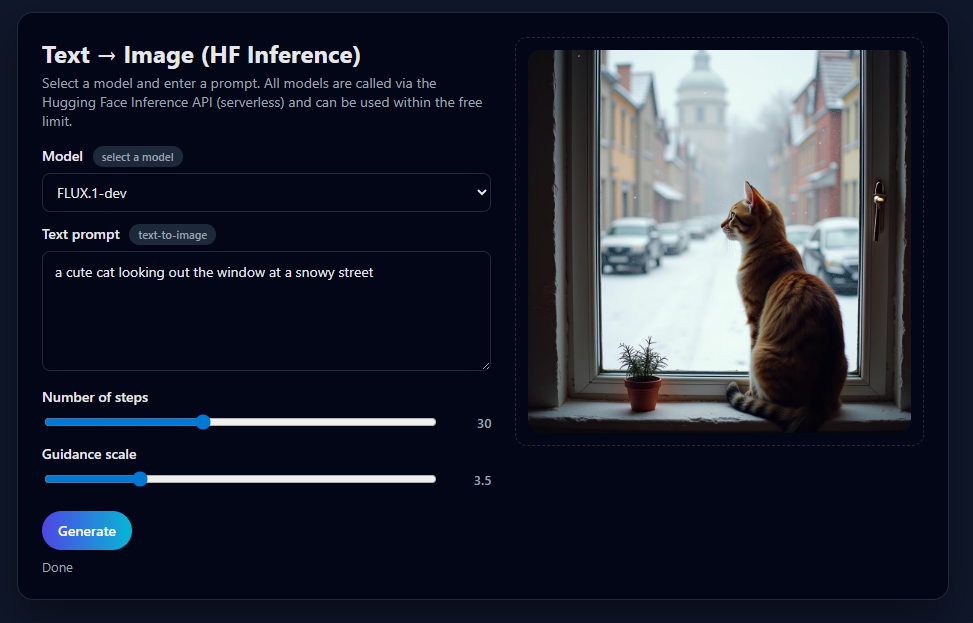
I don't know what you think, but in my opinion it turned out very nicely.
JavaScript and Node.js – An excellent choice for working with AI
JavaScript and Node.js are a great choice for working with AI, especially if you care about efficiency, integration with web applications, and easy collaboration with your frontend team. Thanks to the asynchronous nature of Node.js, developers can quickly implement and test AI solutions while maintaining high application scalability. If you are looking for a simple, flexible, and efficient solution for deploying AI models in production, JavaScript is an excellent choice. You don't have to give up modern AI solutions to stay in the JavaScript ecosystem. If you want to explore the topic further and discover how to get started with AI in Node.js, follow my #AIEngineerJourney.